Guide
Club and academy guide
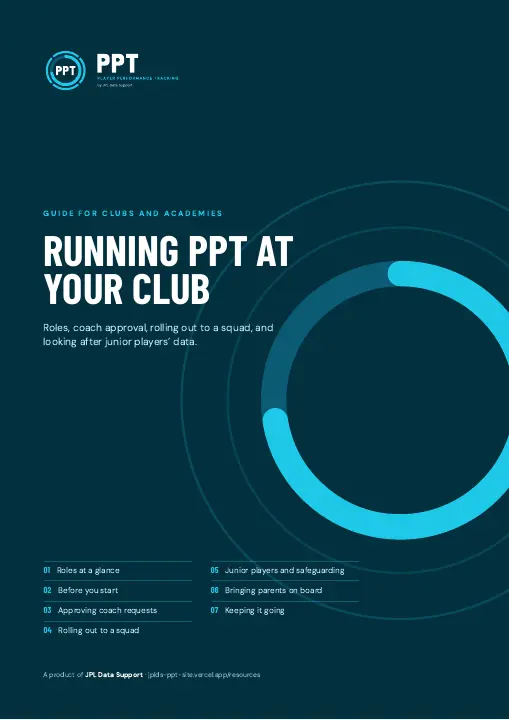
Set up roles, approve coaches, roll PPT out to a squad and look after junior players’ data.
- Clubs and academies
Information sheet · For coaches
How coach access works in PPT, what you can see once a player is yours, and how to use their data between lessons.
How access works
Coaches never see a player by default. Every request is checked, so players, parents and clubs always know who can see what.
From your coach account, ask to be linked to a player. Until the request is approved, you see nothing of their game.
Your club or academy admin checks the request and approves or rejects it. That keeps access deliberate, especially for junior players.
You can now see the player’s rounds and stats, and add lesson notes to their profile for both of you to refer back to.
Once a player is approved
Coaching between lessons
Lessons are where the work happens. PPT shows you what happens in between, so each lesson starts from evidence rather than memory.
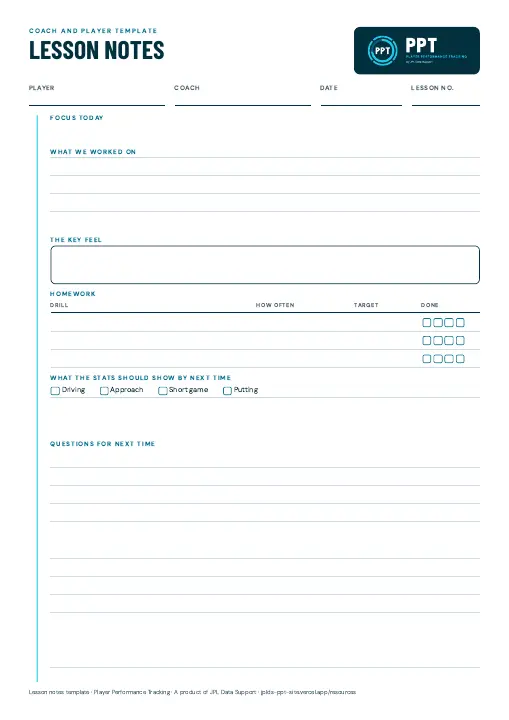
Get the lesson notes template →Look at their last few rounds and the weak spot PPT has flagged.
Work on the area costing the most shots and agree measurable homework.
Add a lesson note in PPT: the focus, the key feel and the homework.
Look in on their rounds. Is the stat you worked on starting to shift?
Getting the most from PPT
Make sure every player records stats the same way. Share the stat definitions cheat sheet at the start.
Five rounds is a hint, ten is a pattern. Avoid rebuilding a swing on one bad card.
Pick the area costing the most shots and leave the rest alone for now.
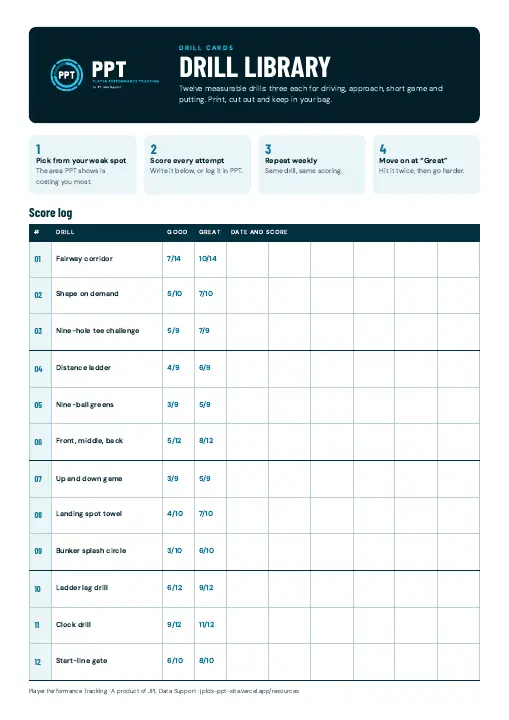
“Seven out of ten from four feet” beats “practise your putting”. See the drill library.
Use the end-of-season workbook to look back and set next year’s targets.
Questions coaches ask
Your club or academy admin sets up roles in PPT. If your club is not using PPT yet, get in touch and we will talk you through it.
So access is always deliberate. Players, and parents of junior players, can be confident that only the coaches they expect can see their data.
Lesson notes are added to the player’s profile so you can both refer back to them. Write them for the player as well as for yourself.
Yes. Each coach and player link is approved on its own, which keeps access clear when players move groups or coaches change.
How do I get a coach account? Your club or academy admin sets up roles in PPT.
Why must an admin approve me? So access is always deliberate, especially for juniors.
One request per player? Yes, each link is approved on its own.
Keep going
Set up roles, approve coaches, roll PPT out to a squad and look after junior players’ data.
Twelve measurable drills for driving, approach, short game and putting, each with a score to log.
What we worked on, the key feel, the homework and what the stats should show before the next lesson.
A new version of this site is available.Refresh to see the latest updates.